*Sections* and *Dividers* can have filters that only allow athlete with certain positions, tags, grad year, ratings ...
For instance, you could make a **Top Recruits** board. Each S*ection* could be a position, and each D*ivider* could be a grad year. Or, each *section* could be a grad year, and each *divider* could be a position. You can drag athletes within Dividers to order them. You could make a **2026** board. Each S*ection* could be an area of the country and each divider could be a level like Offer, Next up, Walk On. Or, each *Section* or *Divider* could be filtered to a certain *Tag*, or an *Overall Rating*. You can open a board by clicking at its name in the *Tasks & Boards* menu. You can also open a board in a new browser tab by selecting the *Open Window* icon. [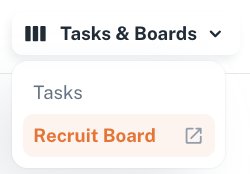](https://docs.universityathlete.com/uploads/images/gallery/2024-01/screenshot-2024-01-04-at-22-03-42.png) --- To create a new *Board* click *Create Board* in the top right corner, and enter its name in the modal. [](https://docs.universityathlete.com/uploads/images/gallery/2024-01/screenshot-2024-01-04-at-22-11-40.png) [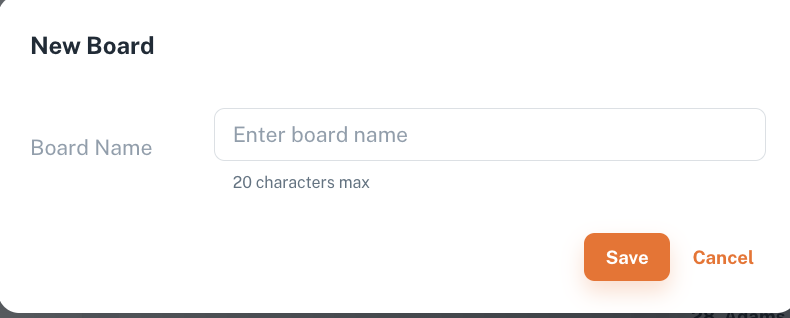](https://docs.universityathlete.com/uploads/images/gallery/2024-01/screenshot-2024-01-04-at-22-09-03.png) --- ##### Working with *Sections* You can edit the name of every section, add new sections to the board (up to 5 per board), and delete the existing sections. [](https://docs.universityathlete.com/uploads/images/gallery/2024-01/screenshot-2024-01-04-at-23-05-04.png) If you select to Split Athetes with Section Dividers, the athlete cards will be visually separated corresponding due to the filter, set up for the divider. For every section you can set up dividers. There are no specific default filters, so that the only one is called everything else. To set up a filter for dividers, click the +1 button, and then "+Filter" button. Enter the name for the divider, select the parameter (tag, graduation year, position, or note), and save the changes. The athlete cards corresponding to the chosen parameters will be visually separated from the others in the section. [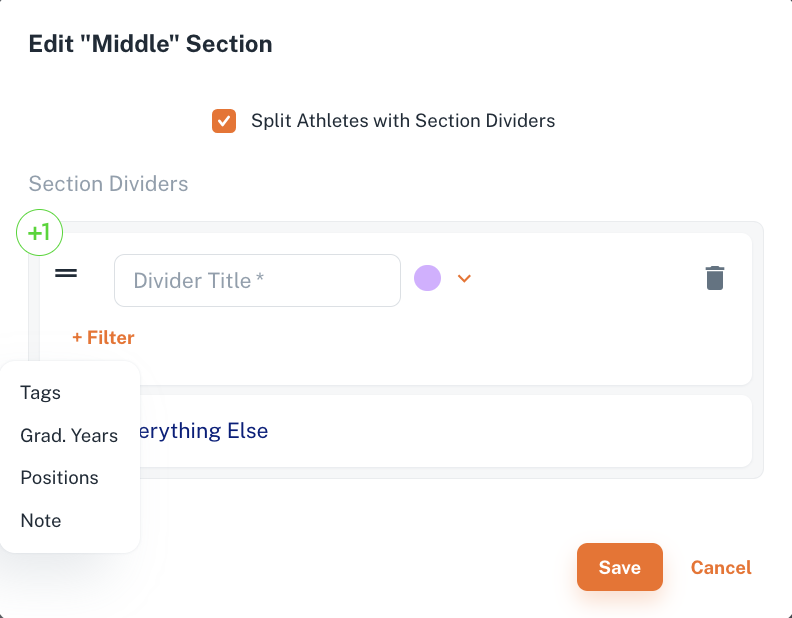](https://docs.universityathlete.com/uploads/images/gallery/2024-01/screenshot-2024-01-04-at-22-55-48.png) For example, in the section with the divider "Tag - Strong Player," it looks like this: it highlights the athlete cards with this tag, leaving the others underneath. **[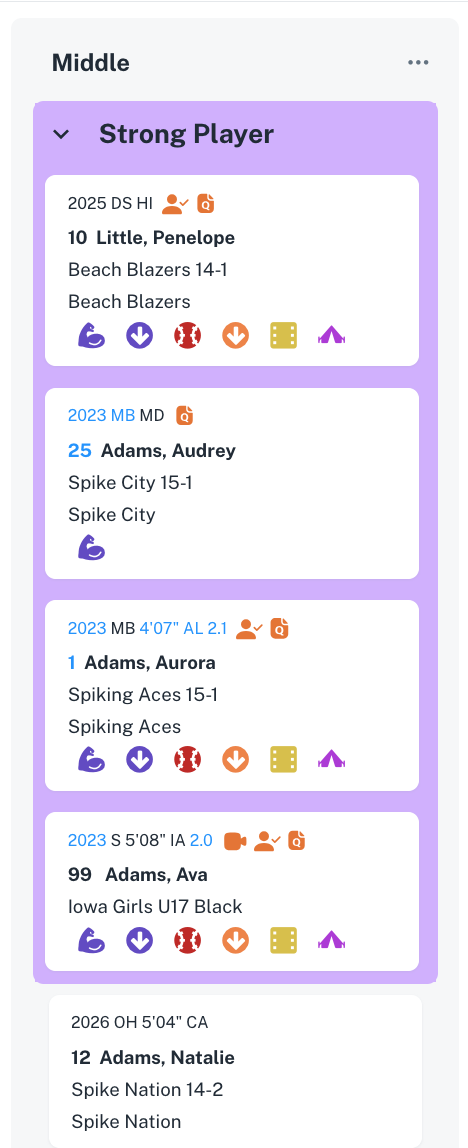](https://docs.universityathlete.com/uploads/images/gallery/2024-01/screenshot-2024-01-04-at-22-59-26.png)** To delete the filter for the divider click the delete button on the right. [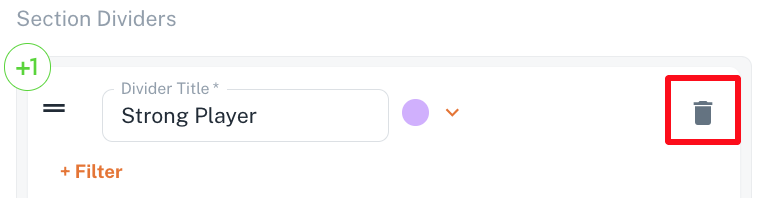](https://docs.universityathlete.com/uploads/images/gallery/2024-01/screenshot-2024-01-04-at-23-09-26.png) # Assigning Athletes to Boards Assigning Athlete to Boards means that the small Athlete Card is displayed at the Board selected. To add an Athlete to a board: go to Athlete Details, open Boards Tab, Click + Boards button, select the Board, and the Section (if needed) you want to add the Athlete to. [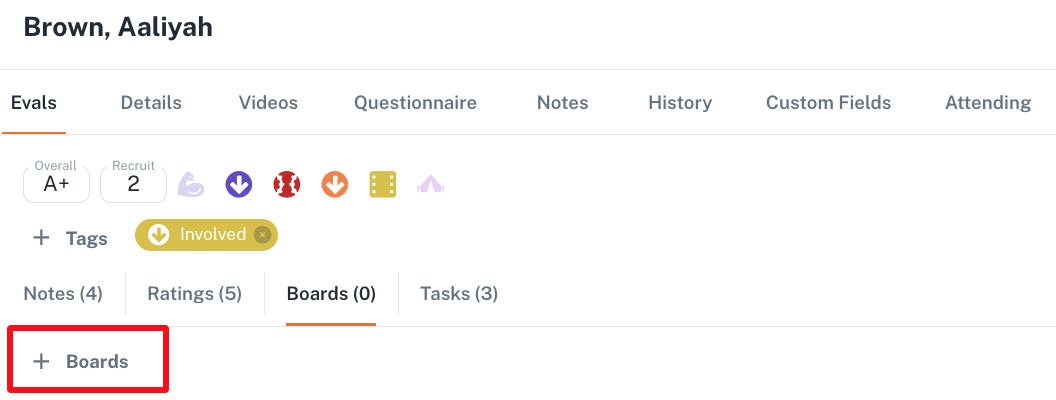](https://docs.universityathlete.com/uploads/images/gallery/2024-01/screenshot-2024-01-05-at-21-57-06.png) [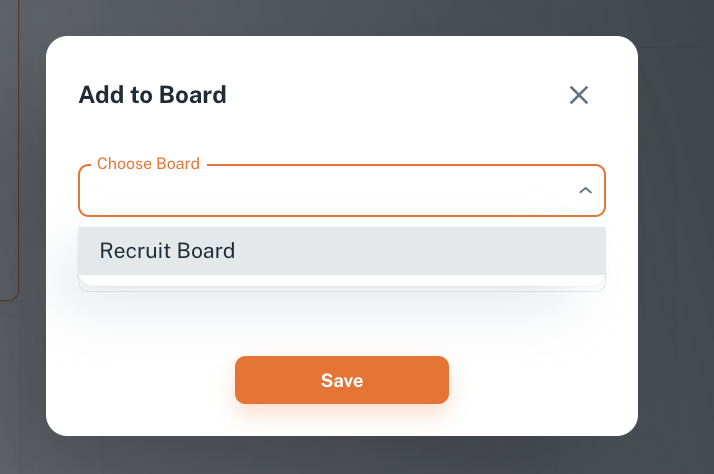](https://docs.universityathlete.com/uploads/images/gallery/2024-01/screenshot-2024-01-05-at-21-57-42.png) [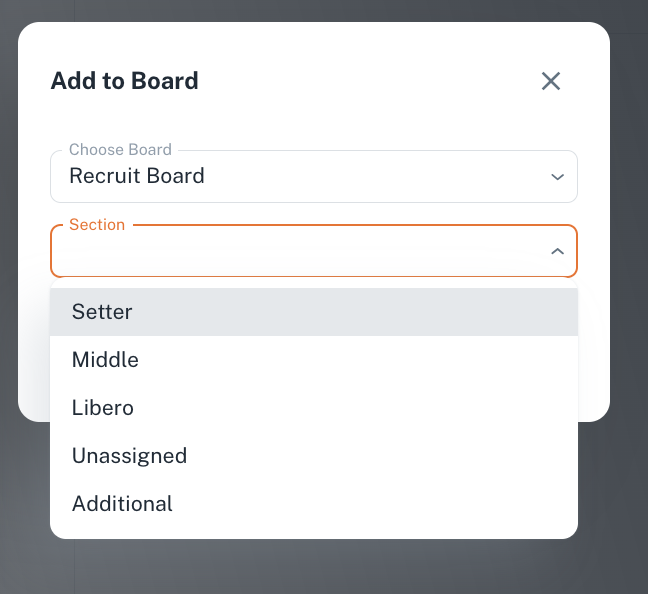](https://docs.universityathlete.com/uploads/images/gallery/2024-01/screenshot-2024-01-05-at-22-01-02.png) When you save the changes, the pill with this name appears at the athlete details flyout, and the small athlete card will be displayed at the corresponding board and section. [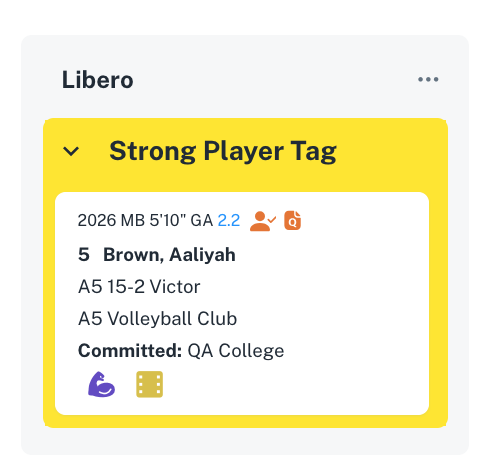. ](https://docs.universityathlete.com/uploads/images/gallery/2024-01/screenshot-2024-01-05-at-22-26-08.png)[](https://docs.universityathlete.com/uploads/images/gallery/2024-01/screenshot-2024-01-05-at-22-03-08.png) By clicking the cross on the pill, you will remove the athlete from the board. ##### Managing Athletes at Boards You can place an athlete card to several boards, or several sections at the same time. For each section a small athlete card for this athlete will be displayed. You can drag & drop athlete cards between sections. When you place an athlete to the section with dividers, the athlete will be placed within the specific divider automatically, if the athlete has the parameter (tag, grad year) set up as filter for the divider. Athlete cards are clickable, you can remove the athlete from the board or from the section using the 3 dots menu. Additional actions are also available.