# Online Usage

# Introduction


# Who We Are

#### University Athlete is a small team of former coaches and dedicated developers with a mission to help coaches and athletes in volleyball find the right fit.

##### We provide software tools to college coaches to make their jobs easier:
- Our online application gives them access to hundreds of thousands of athletes and acts as a central library for evaluations, notes, ratings and even tasks that each program's staff can colaberate on.
- Our mobile application combines rosters and schedules with staff evaluations at hundreds of events each year
- Nearly 1,000 collegiate programs use our platform every year

##### Every athlete in the country has access to a free profile:
- They can provide missing essential information such as GPA, high school and family
- They can verify and correct bad roster data
- They can upload unlimited video links and other supplimental information

# What's new in 2024

How are you impacted with the changes from last season to the new season?

# 2023-2024 Conversion FAQ

##### Every program will have its data backed up and converted to the 2024 format.

---

##### *When will the conversion happen?*

In mid-January, a button will appear on the home page allowing you to convert your 2023 work to the new format. Late January, all accounts will be converted.

---

##### *How long does conversion take?*

Each program will take approximately 15 minutes. If many programs request conversion at the same time, it could be overnight.

<p class="callout info">During conversion, no one from the staff will be able to log in to the web or mobile app.</p>

<p class="callout danger">*Once you have converted, everyone must use the new mobile app UA 2024.*</p>

---

##### *What will happen with my [Tags](https://docs.universityathlete.com/books/online-usage/page/introduction-to-tags "Introduction to Tags")?*

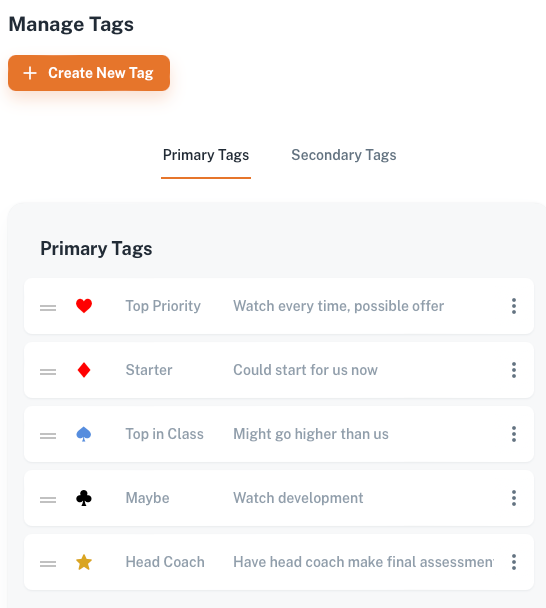
Tags don't go away. All your current tags (Heart, Diamond, Club, Spade, Star) will be converted to the new [*Primary*](https://docs.universityathlete.com/books/online-usage/page/introduction-to-tags "Introduction to Tags") tag format. *Primary* tags are larger and don't show their label in most places. You may change your *Primary* tag icons and labels if you like. You can also add one more *Primary* tag since the limit is 6. *Primary* tags can be reordered.

<p class="callout warning">If you use *Tags* in Front Rush, ACS, or Jump Forward, you should check with them before changing or adding another *Primary* tag since they may not convert correctly.</p>

---

##### *What will happen with my Categories?*

Categories will be converted to [*Secondary*](https://docs.universityathlete.com/books/online-usage/page/creating-editing-deleting-tags "Creating, Editing, Deleting Tags") tags. They will contain the same label and color. You can optionally add icons to each *Secondary* tag and a task to be assigned when a Secondary tag is used. For Tier 1 and Tier 2, there is no limit to the number of *Secondary* tags you may have. *Secondary* tags can be reordered.

---

##### *What will happen with my Groups?*

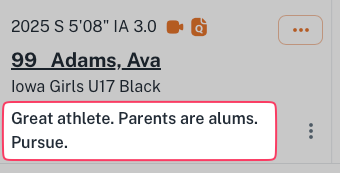
Group will be converted to [*Summary*](https://docs.universityathlete.com/books/online-usage/page/summary "Summary"). *Summary* is longer and can contain a sentence or two describing the athlete. It can also contain special characters like before.

<p class="callout info">There is only one Summary per athlete. Editing will change it for all staff.</p>

---

##### *What will happen with my [Notes](https://docs.universityathlete.com/books/online-usage/page/notes "Notes")?*

Notes from 2023 and earlier will not change.

---

##### *What will happen with our staff [profiles](https://docs.universityathlete.com/books/online-usage/page/managing-staff-profiles "Managing Staff Profiles")?*

##### Every staff member will need to have their profile updated. Initials in a custom colored circle will be used instead of "C1, C2" ... etc.

# What's New

##### [Primary Tags](https://docs.universityathlete.com/books/online-usage/page/creating-editing-deleting-tags "Creating, Editing, Deleting Tags")

[![image.png](https://docs.universityathlete.com/uploads/images/gallery/2024-01/scaled-1680-/jlQimage.png)](https://docs.universityathlete.com/uploads/images/gallery/2024-01/jlQimage.png)

*Primary* tags (formerly Tags) have larger icons without labels. You are limited to 6. You can choose the icon and the color. They can be re-ordered.

---

##### [Secondary Tags](https://docs.universityathlete.com/books/online-usage/page/creating-editing-deleting-tags "Creating, Editing, Deleting Tags")

[![image.png](https://docs.universityathlete.com/uploads/images/gallery/2024-01/scaled-1680-/endimage.png)](https://docs.universityathlete.com/uploads/images/gallery/2024-01/endimage.png)

Secondary tags (formerly Categories) are pill shaped and may contain a color, a label and/or an icon. They can be re-ordered. There is no limit.

---

##### [Summary](https://docs.universityathlete.com/books/online-usage/page/summary "Summary")

[![image.png](https://docs.universityathlete.com/uploads/images/gallery/2024-01/scaled-1680-/JdNimage.png)](https://docs.universityathlete.com/uploads/images/gallery/2024-01/JdNimage.png)
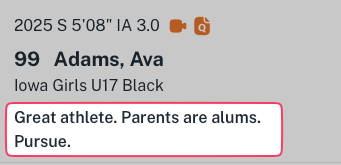
A *Summary* (formerly Group) is a brief description of the athlete that is shared amongst staff. Your program may only have one *Summary* per athlete.

---

##### [Overall Rating](https://docs.universityathlete.com/books/online-usage/page/ratings "Ratings")

[![image.png](https://docs.universityathlete.com/uploads/images/gallery/2024-01/scaled-1680-/Yvzimage.png)](https://docs.universityathlete.com/uploads/images/gallery/2024-01/Yvzimage.png)

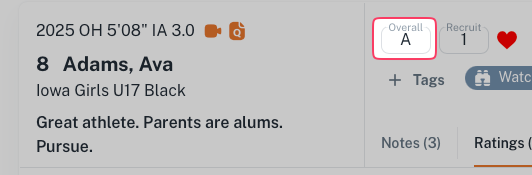
A grade from A+ to F that summarizes an athlete's overall ability.

---

##### [Recruitability Score](https://docs.universityathlete.com/books/online-usage/page/ratings "Ratings")

[![image.png](https://docs.universityathlete.com/uploads/images/gallery/2024-01/scaled-1680-/AnVimage.png)](https://docs.universityathlete.com/uploads/images/gallery/2024-01/AnVimage.png)

A number from +2 through -1 that compares the athlete to your current roster. Averages of this score over hundreds of college evaluations will also be used to help us anonymously suggest best fit for athletes.

---

##### [Boards](https://docs.universityathlete.com/books/online-usage/chapter/boards "Boards")

***Tier 1 Only.*** Drag and drop visual boards with filtered columns and dividers to organize your recruits

---

##### [Tasks](https://docs.universityathlete.com/books/online-usage/chapter/tasks "Tasks")

***Tier 1 Only.*** Assignable tasks to staff from templates.

---

##### Email

***Tier 1 Only.*** Customizable templates for frequently used email content with variables to specify athlete name, grad year, position, club name ... etc. The message body will be copied to your clipboard and a new email from your default program launched addressed to the athlete if their email is known. Simply paste the message and send. This will keep all your outgoing messages saved in your sent mail. A coded BCC email will also be used to save the sent email as a note.

# Staff


# Registering Staff

Every staff member must [register](https://universityathlete.com/#/registration/college) themselves. An email validation will be required and a UA staff member must approve the registration. Each registration requires Two Factor Authentication (2FA) to comply with IT department requirements but can be disabled in the profile settings after approval.

# Managing Staff Profiles

#####   


<iframe allowfullscreen="allowfullscreen" height="314" src="https://www.youtube.com/embed/cNT5FQs3J3s" width="560"></iframe>

---

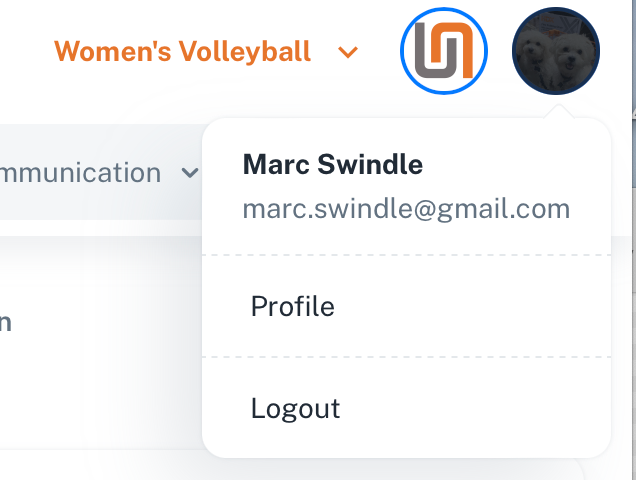
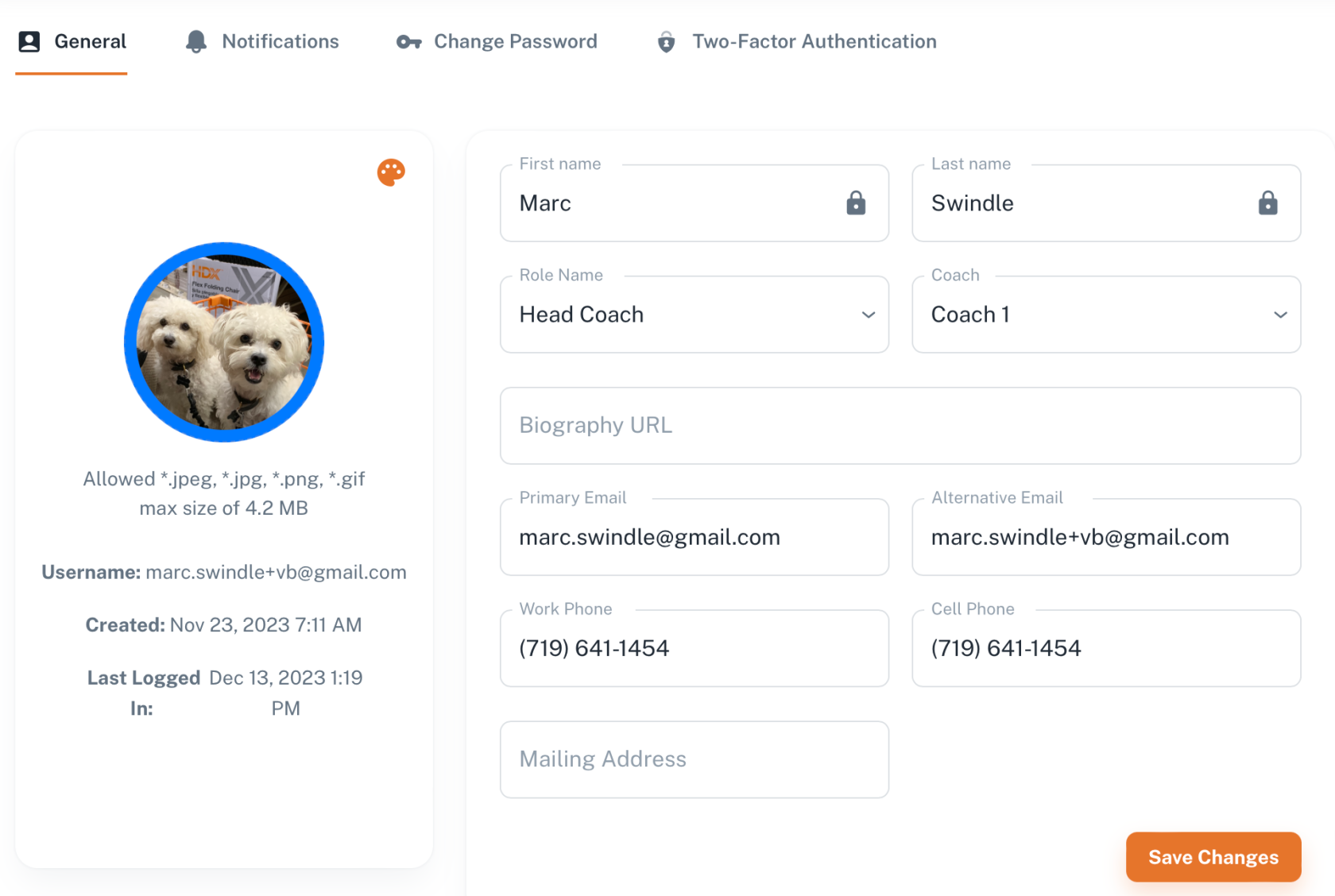
##### Anyone on staff can manage the staff roster and upload a profile photo, select the staff highlight color and initials or remove a staff member.

<p class="callout info">In previous seasons, staff was indicated by C1, C2 ... C5. Now, they are represented by their initials in a circle with a custom background color.</p>

To edit your profile, select your profile Image in the upper right corner of the screen:
![image.png](https://docs.universityathlete.com/uploads/images/gallery/2023-12/scaled-1680-/dGdimage.png)

You will be able to edit most of your data, including uploading a profile photo, changing your initials, and selecting a custom color.
![image.png](https://docs.universityathlete.com/uploads/images/gallery/2023-12/scaled-1680-/CuRimage.png)

# Delete Staff

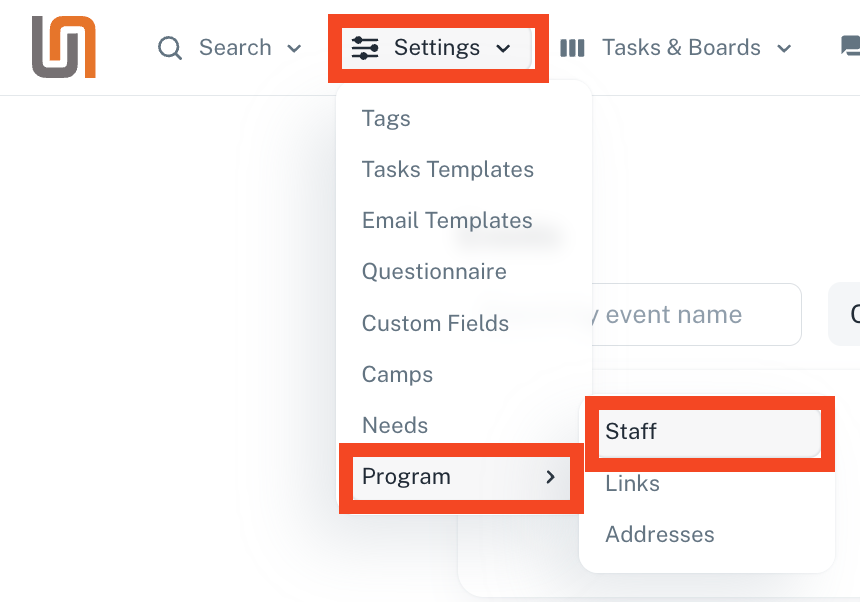
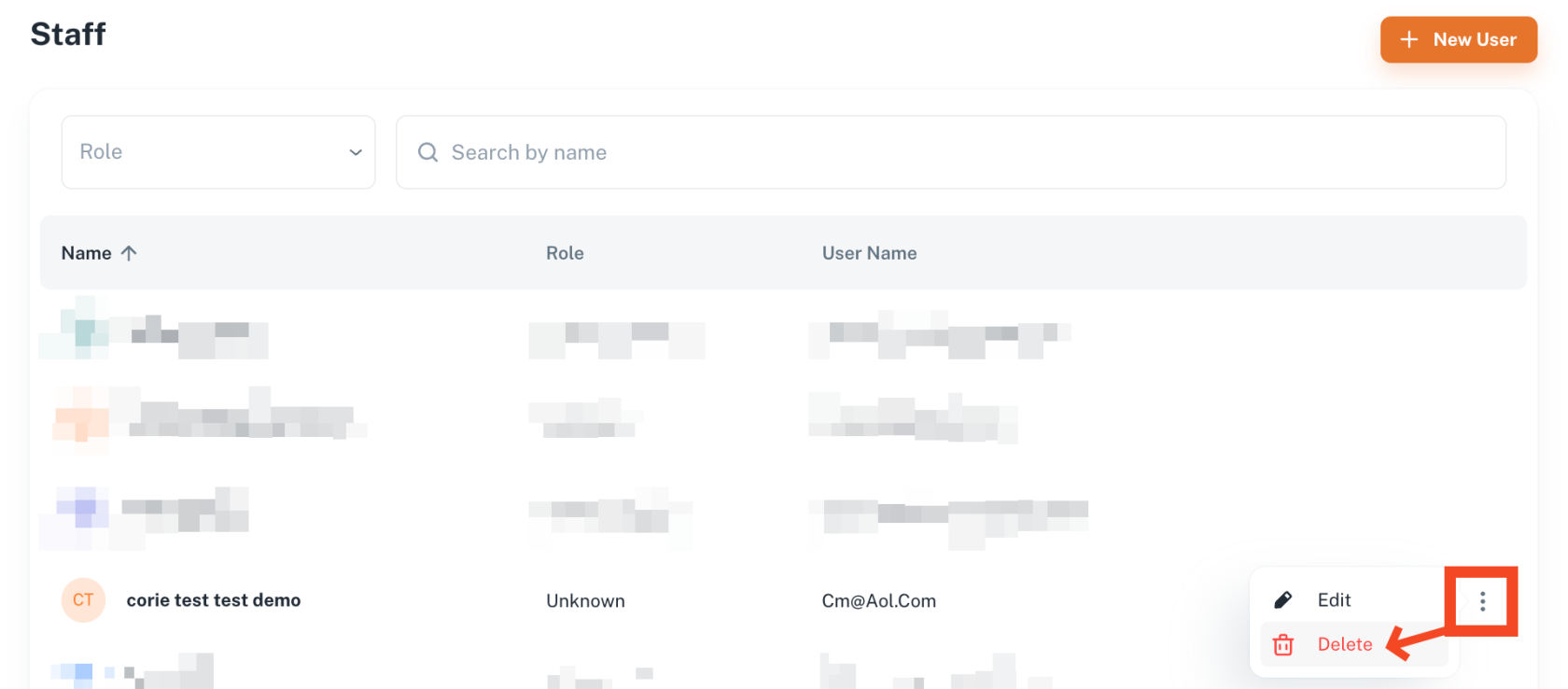
To delete any staff member from your account, go to Settings &gt; Programs &gt; Staff, here:

[![image.png](https://docs.universityathlete.com/uploads/images/gallery/2024-08/scaled-1680-/image.png)](https://docs.universityathlete.com/uploads/images/gallery/2024-08/image.png)

Here you will see a list of all staff members linked to your school account. To the right of the staff name, you will see a vertical 3 dot menu. Hover over the 3 dot menu and select delete:

[![image.png](https://docs.universityathlete.com/uploads/images/gallery/2024-08/scaled-1680-/Pckimage.png)](https://docs.universityathlete.com/uploads/images/gallery/2024-08/Pckimage.png)
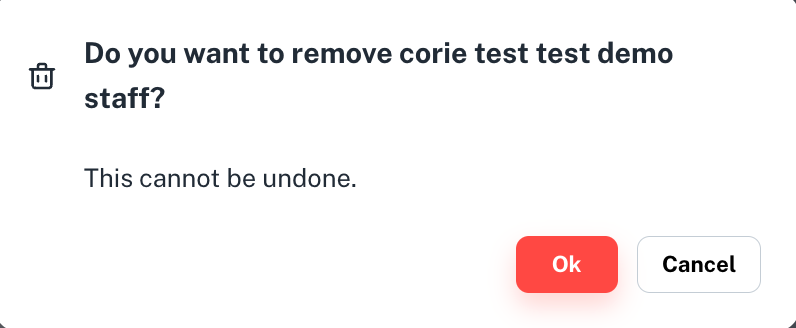
Then confirm the deletion:

[![image.png](https://docs.universityathlete.com/uploads/images/gallery/2024-08/scaled-1680-/i7fimage.png)](https://docs.universityathlete.com/uploads/images/gallery/2024-08/i7fimage.png)
# Tags


# Introduction to Tags

##### Tags are symbols with custom icons, colors, and labels that staff can apply to any athlete. Tags are the primary method for a program to categorize athletes

This feature operates at the program level, meaning that a coach can create, apply, and view tags exclusively for their college. There are 2 different types of tags available -- **Primary** tags and **Secondary** tags.

[![image.png](https://docs.universityathlete.com/uploads/images/gallery/2023-12/scaled-1680-/EPzimage.png)](https://docs.universityathlete.com/uploads/images/gallery/2023-12/EPzimage.png)
---

##### **Primary Tags** are displayed as large icons without labels on an athlete card.

Each program can have a maximum of 6 Primary tags. The default set of icons is Heart, Diamond, Spade, Club, Star which can be edited at any time.

[![image.png](https://docs.universityathlete.com/uploads/images/gallery/2023-12/scaled-1680-/7PTimage.png)](https://docs.universityathlete.com/uploads/images/gallery/2023-12/7PTimage.png)

Each program may create up to 6 Primary tags. Primary tags are larger and do not display a label.

<p class="callout info">The standard tags: Heart, Diamond, Club, Spade, Star from 2023 will be automatically converted to Primary tags.</p>


---

##### **Secondary Tags** are smaller and can contain labels.

Each program may create unlimited secondary tags.

[![image.png](https://docs.universityathlete.com/uploads/images/gallery/2023-12/scaled-1680-/Zklimage.png)](https://docs.universityathlete.com/uploads/images/gallery/2023-12/Zklimage.png)

<p class="callout info">Categories from 2023 will be automatically converted to Secondary tags.</p>


---

##### Any staff member can:

- Create a Tag
- Update a Tag
- Delete a Tag
- Tag athletes with multiple tags
- Apply several Tags to an athlete in bulk from the search results page

<p class="callout success">Athletes never see the tags you have given them.</p>

# Creating, Editing, Deleting Tags

##### To Create, Edit, or Delete a tag, click [Settings &gt; Tags](https://college.universityathlete.com/home/settings/tags)

***How to make Primary and Secondary Tags**  <iframe allowfullscreen="allowfullscreen" height="314" src="https://www.youtube.com/embed/HHnvwgS0AmQ" width="560"></iframe>

***How to Edit Tags***  <iframe allowfullscreen="allowfullscreen" height="314" src="https://www.youtube.com/embed/VTUHqkvtm6w" width="560"></iframe>

***How to Delete Tags***  
 <iframe allowfullscreen="allowfullscreen" height="314" src="https://www.youtube.com/embed/FIIGhSyHYLw" width="560"></iframe>

[![image.png](https://docs.universityathlete.com/uploads/images/gallery/2023-12/scaled-1680-/lzTimage.png)](https://docs.universityathlete.com/uploads/images/gallery/2023-12/lzTimage.png)

---

##### To create a new tag, click the + Create Tag button.

[![image.png](https://docs.universityathlete.com/uploads/images/gallery/2023-12/scaled-1680-/gP1image.png)](https://docs.universityathlete.com/uploads/images/gallery/2023-12/gP1image.png)

---

##### To edit an existing Tag, roll over the tag, or click the options menu to the right of the tag and select "Edit" 

[![image.png](https://docs.universityathlete.com/uploads/images/gallery/2023-12/scaled-1680-/Fyjimage.png)](https://docs.universityathlete.com/uploads/images/gallery/2023-12/Fyjimage.png)
[![image.png](https://docs.universityathlete.com/uploads/images/gallery/2023-12/scaled-1680-/yw2image.png)](https://docs.universityathlete.com/uploads/images/gallery/2023-12/yw2image.png)
---

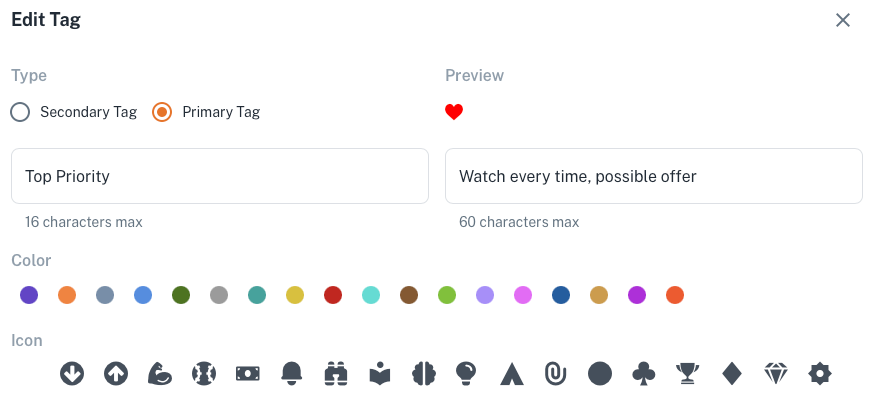
##### When editing a tag, you can:

- Make it Primary or Secondary
- Give it a label and a description (Primary tags don't display the label)
- Choose a color
- Choose an icon

---

##### To delete an existing Tag, roll over the tag, or click the options menu to the right of the tag and select "Edit", then confirm deletion.

[![image.png](https://docs.universityathlete.com/uploads/images/gallery/2023-12/scaled-1680-/uatimage.png)](https://docs.universityathlete.com/uploads/images/gallery/2023-12/uatimage.png)
<p class="callout warning">Warning. Deleting a tag is not reversible. It will be removed from every athlete that contains that tag.</p>

# Assigning Tags

##### You can assign or remove a tag any time you see an Athlete.

*How to Assign Primary and Secondary Tags to an Athlete:* <iframe allowfullscreen="allowfullscreen" height="314" src="https://www.youtube.com/embed/eow2SpJJIDA" width="560"></iframe>

---

[![image.png](https://docs.universityathlete.com/uploads/images/gallery/2023-12/scaled-1680-/deyimage.png)](https://docs.universityathlete.com/uploads/images/gallery/2023-12/deyimage.png)

---

##### To assign or remove a Primary tag, click the icon. 

<p class="callout info">Assigned Primary tags are full color. Unassigned Primary tags are dim.</p>

[![image.png](https://docs.universityathlete.com/uploads/images/gallery/2023-12/scaled-1680-/fi6image.png)](https://docs.universityathlete.com/uploads/images/gallery/2023-12/fi6image.png)

---

##### To assign Secondary tag, click the *+ Tags* button and choose any available tags.

[![image.png](https://docs.universityathlete.com/uploads/images/gallery/2023-12/scaled-1680-/ogeimage.png)](https://docs.universityathlete.com/uploads/images/gallery/2023-12/ogeimage.png)
---

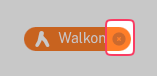
##### To remove a Secondary tag, click the delete button *(x)* on the far right of the pill.
![image.png](https://docs.universityathlete.com/uploads/images/gallery/2023-12/scaled-1680-/PS9image.png)

# Evaluations


# Summary

##### A Summary is the description of an athlete shared between staff members.

<p class="callout warning">There is only one summary per athlete. Editing a Summary will change it for everyone on the staff.</p>

##### <iframe allowfullscreen="allowfullscreen" height="314" src="https://www.youtube.com/embed/iw2r_HJgv28" width="560"></iframe>


#####  [![image.png](https://docs.universityathlete.com/uploads/images/gallery/2023-12/scaled-1680-/I1Aimage.png)](https://docs.universityathlete.com/uploads/images/gallery/2023-12/I1Aimage.png)

<p class="callout info">Groups from 2023 will be migrated to Summary</p>

---

##### To add a Summary to an athlete

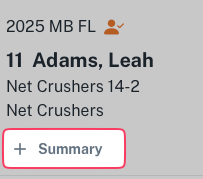
Click the *+ Summary* symbol

[![image.png](https://docs.universityathlete.com/uploads/images/gallery/2023-12/scaled-1680-/5mWimage.png)](https://docs.universityathlete.com/uploads/images/gallery/2023-12/5mWimage.png)
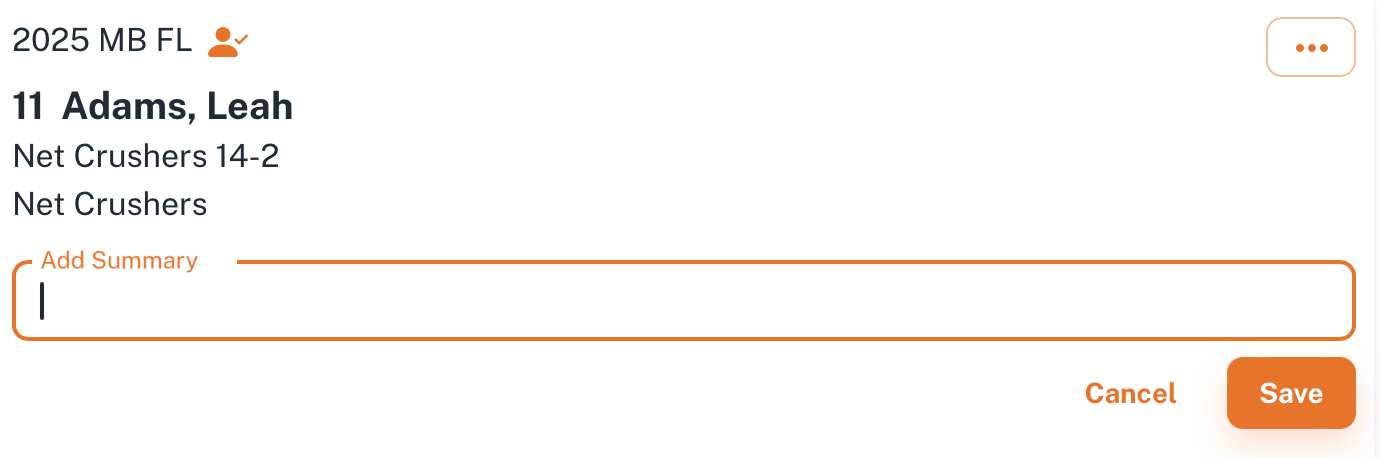
Enter the desired Summary and click *Save*.

[![image.png](https://docs.universityathlete.com/uploads/images/gallery/2023-12/scaled-1680-/KMrimage.png)](https://docs.universityathlete.com/uploads/images/gallery/2023-12/KMrimage.png)
---

##### To edit a Summary

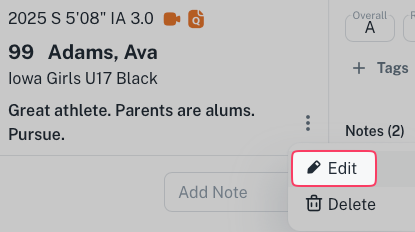
Click on the options icon and choose *Edit*

[![image.png](https://docs.universityathlete.com/uploads/images/gallery/2023-12/scaled-1680-/XWuimage.png)](https://docs.universityathlete.com/uploads/images/gallery/2023-12/XWuimage.png)
---

##### To delete a Summary

Click on the options icon, choose *Delete,* confirm deletion.

<p class="callout warning">Once confirmed, this action cannot be undone.</p>

# Notes

##### Notes are connected to an athlete and written by a staff member or generated by system activities.

<iframe allowfullscreen="allowfullscreen" height="314" src="https://www.youtube.com/embed/94hp2lK_bPQ" width="560"></iframe>

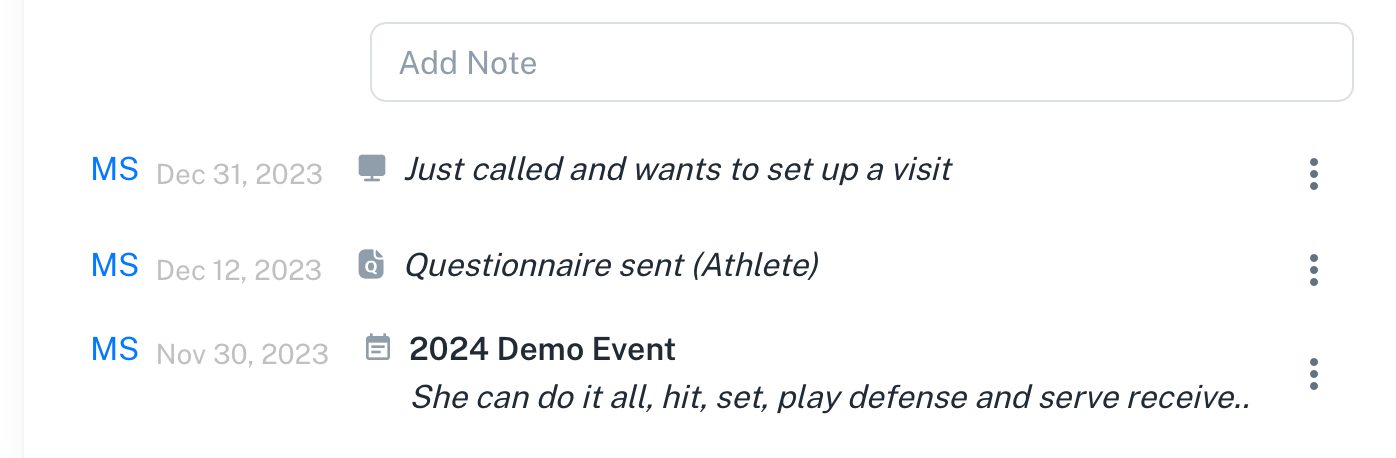
An athlete can have unlimited notes. Notes have categories such as *Questionnaire*, *Web*, *Video*, *Event, Email*. Each note has the initials of the staff member that created the note and a small icon next to the note so you know which type it is. Event notes have the name of the event as a title.

Notes are sorted from newest to oldest unless pinned.

[![image.png](https://docs.universityathlete.com/uploads/images/gallery/2023-12/scaled-1680-/28rimage.png)](https://docs.universityathlete.com/uploads/images/gallery/2023-12/28rimage.png)
---

##### To create a new note

Click the *Add Note* field, type the note, and click outside the text field to save.

[![image.png](https://docs.universityathlete.com/uploads/images/gallery/2023-12/scaled-1680-/91Uimage.png)](https://docs.universityathlete.com/uploads/images/gallery/2023-12/91Uimage.png)

---

##### To edit an existing note

Click the text and make changes. Click outside the text field to save.

[![image.png](https://docs.universityathlete.com/uploads/images/gallery/2023-12/scaled-1680-/efXimage.png)](https://docs.universityathlete.com/uploads/images/gallery/2023-12/efXimage.png)

---

##### To pin a note

Select the Note's option menu and choose *Pin*.

[![image.png](https://docs.universityathlete.com/uploads/images/gallery/2023-12/scaled-1680-/HOmimage.png)](https://docs.universityathlete.com/uploads/images/gallery/2023-12/HOmimage.png)
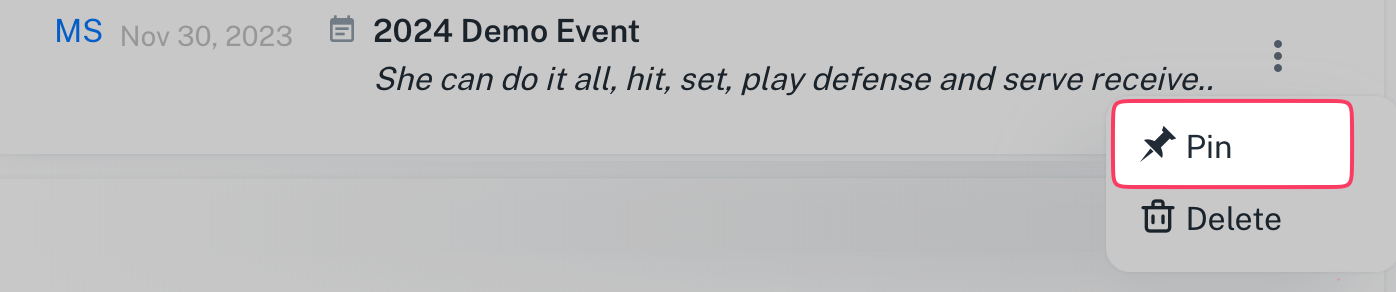
<p class="callout info">Pinned notes will stay at the top of an athletes notes list even if other notes are more recent.</p>

---

##### To delete a note

Select the Note's option menu and choose *Delete*.

[![image.png](https://docs.universityathlete.com/uploads/images/gallery/2023-12/scaled-1680-/9dHimage.png)](https://docs.universityathlete.com/uploads/images/gallery/2023-12/9dHimage.png)
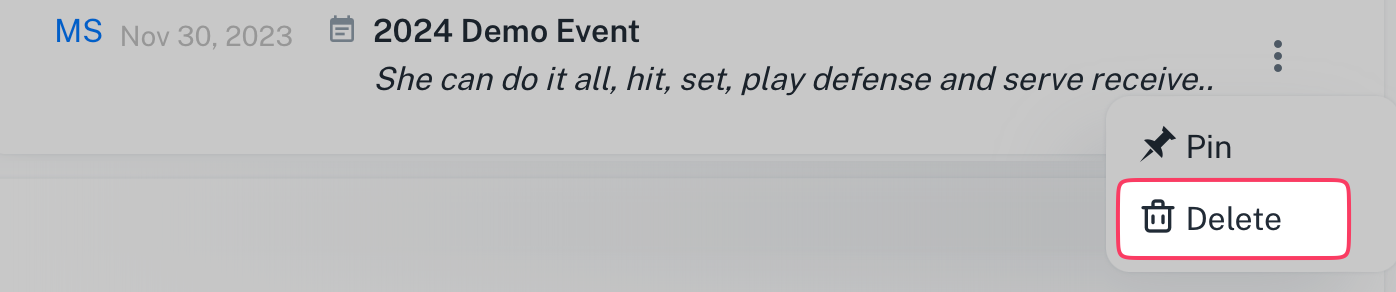
<p class="callout warning">Deleting a note cannot be undone.</p>

---

##### The main types of notes are:

- *Web* notes are usually notes added from desktop
- *Event* notes are added at a particular tournament using the UA app.

##### In addition there are system notes added automatically

- *Questionnaire* notes are added automatically when you send a questionnaire to the athlete
- *Video* notes are added when you make a note on a video sent to you from an athlete
- *Email* note appears when you use the *Email to Note* function

# Ratings

#### Ratings are a unified way for the entire staff to appraise an athletes ability.

<p class="callout success">Athletes never see the ratings you give them.</p>

##### <iframe allowfullscreen="allowfullscreen" height="314" src="https://www.youtube.com/embed/m_AA3j3hqEc" width="560"></iframe>


##### Overall Rating: 

This is a single grade from A+ to F.

<p class="callout info">The most recent overall grade assigned by any staff member will be shown</p>

[![image.png](https://docs.universityathlete.com/uploads/images/gallery/2024-01/scaled-1680-/aNLimage.png)](https://docs.universityathlete.com/uploads/images/gallery/2024-01/aNLimage.png)![Screenshot 2024-01-04 at 15.10.40.png](https://docs.universityathlete.com/uploads/images/gallery/2024-01/scaled-1680-/screenshot-2024-01-04-at-15-10-40.png)
---

##### Recruitability Score:

This is a numeric system to allow staff to compare an athlete to their current roster. The most recent score assigned by a staff member will be shown.

[![image.png](https://docs.universityathlete.com/uploads/images/gallery/2024-01/scaled-1680-/X6Pimage.png) ](https://docs.universityathlete.com/uploads/images/gallery/2024-01/X6Pimage.png)[![Screenshot 2024-01-04 at 15.03.55.png](https://docs.universityathlete.com/uploads/images/gallery/2024-01/scaled-1680-/screenshot-2024-01-04-at-15-03-55.png)](https://docs.universityathlete.com/uploads/images/gallery/2024-01/screenshot-2024-01-04-at-15-03-55.png)
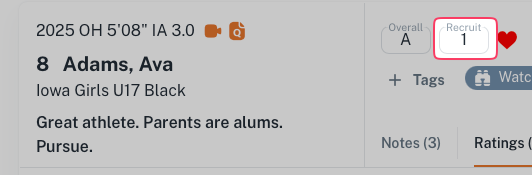
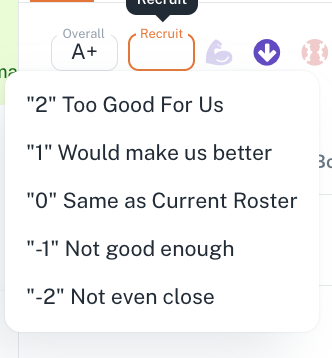
<p class="callout info">Giving every athlete you evaluate a recruitability score will also help us direct them toward the best fit.</p>

---

#### General and Position Skills

*Tier 1 Only*

*<iframe allowfullscreen="allowfullscreen" height="314" src="https://www.youtube.com/embed/JZhbh_KOMzY" width="560"></iframe>*

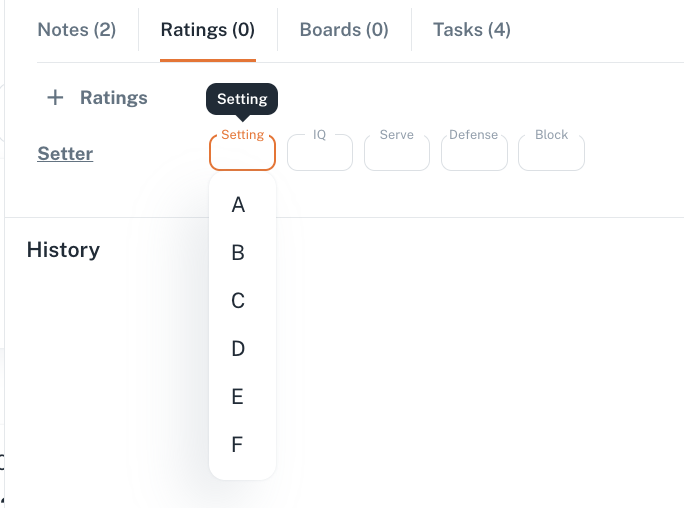
- Apply a grade of A-F
- General categories are Skill, Body, Mind, Heart, Team
- Position categories are dependent on the position being evaluated

[![image.png](https://docs.universityathlete.com/uploads/images/gallery/2024-01/scaled-1680-/image.png)](https://docs.universityathlete.com/uploads/images/gallery/2024-01/image.png)![Screenshot 2024-01-04 at 15.06.01.png](https://docs.universityathlete.com/uploads/images/gallery/2024-01/scaled-1680-/screenshot-2024-01-04-at-15-06-01.png)
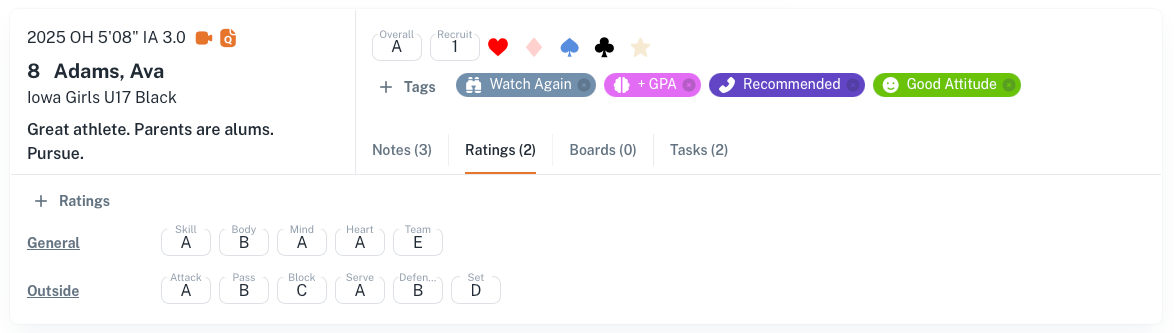
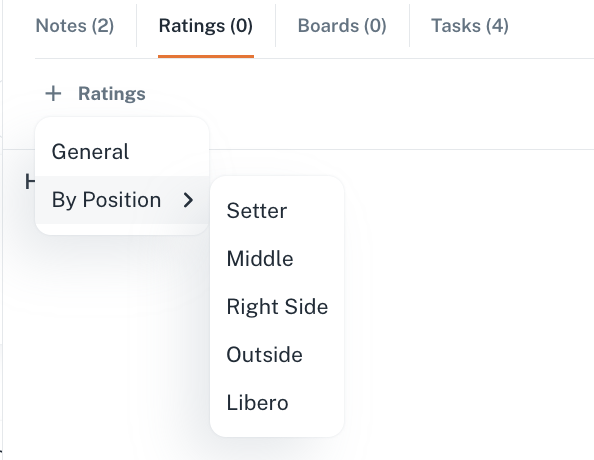
<p class="callout info">You can evaluate a player for more than one position (ie. an outside as a libero)</p>

---

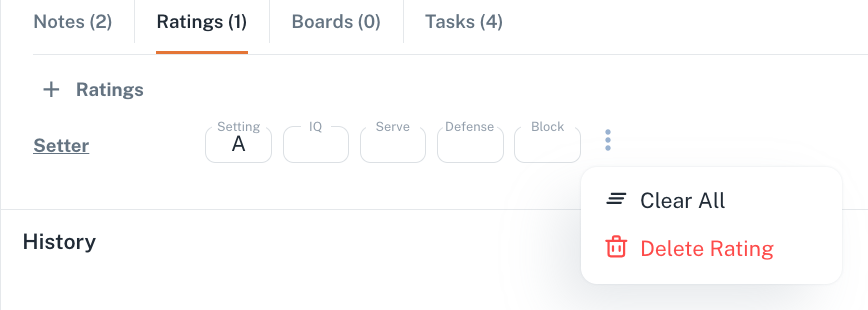
##### Delete a Rating

Click the option menu (3 vertical dots) on the right to clear your grades or delete the rating entirely.

<p class="callout warning">This action is not reversible.</p>

[![Screenshot 2024-01-04 at 15.12.31.png](https://docs.universityathlete.com/uploads/images/gallery/2024-01/scaled-1680-/screenshot-2024-01-04-at-15-12-31.png)](https://docs.universityathlete.com/uploads/images/gallery/2024-01/screenshot-2024-01-04-at-15-12-31.png)

# Boards


# Boards

##### *Boards* are a great way to visually organize information with drag and drop ordering.

*Boards* have *Sections* (columns) and each S*ection* can have one or more *Dividers*.

<iframe allowfullscreen="allowfullscreen" height="314" src="https://www.youtube.com/embed/XPcoFTmSOm4" width="560"></iframe>

You can use *Boards* to organize your recruits.

<p class="callout info">*Sections* and *Dividers* can have filters that only allow athlete with certain positions, tags, grad year, ratings ...</p>

For instance, you could make a **Top Recruits** board. Each S*ection* could be a position, and each D*ivider* could be a grad year. Or, each *section* could be a grad year, and each *divider* could be a position. You can drag athletes within Dividers to order them.

You could make a **2026** board. Each S*ection* could be an area of the country and each divider could be a level like Offer, Next up, Walk On. Or, each *Section* or *Divider* could be filtered to a certain *Tag*, or an *Overall Rating*.

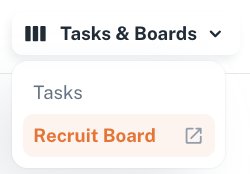
You can open a board by clicking at its name in the *Tasks &amp; Boards* menu. You can also open a board in a new browser tab by selecting the *Open Window* icon.

[![Screenshot 2024-01-04 at 22.03.42.png](https://docs.universityathlete.com/uploads/images/gallery/2024-01/scaled-1680-/screenshot-2024-01-04-at-22-03-42.png)](https://docs.universityathlete.com/uploads/images/gallery/2024-01/screenshot-2024-01-04-at-22-03-42.png)
---

<iframe allowfullscreen="allowfullscreen" height="314" src="https://www.youtube.com/embed/scFzY4PMO-U" width="560"></iframe>

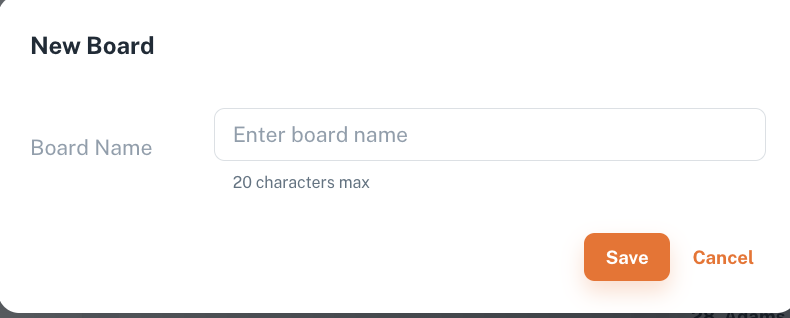
To create a new *Board* click *Create Board* in the top right corner, and enter its name in the modal.

[![Screenshot 2024-01-04 at 22.11.40.png](https://docs.universityathlete.com/uploads/images/gallery/2024-01/scaled-1680-/screenshot-2024-01-04-at-22-11-40.png)](https://docs.universityathlete.com/uploads/images/gallery/2024-01/screenshot-2024-01-04-at-22-11-40.png)

[![Screenshot 2024-01-04 at 22.09.03.png](https://docs.universityathlete.com/uploads/images/gallery/2024-01/scaled-1680-/screenshot-2024-01-04-at-22-09-03.png)](https://docs.universityathlete.com/uploads/images/gallery/2024-01/screenshot-2024-01-04-at-22-09-03.png)
---

##### Working with *Sections*

You can edit the name of every section, add new sections to the board (up to 5 per board), and delete the existing sections.

[![Screenshot 2024-01-04 at 23.05.04.png](https://docs.universityathlete.com/uploads/images/gallery/2024-01/scaled-1680-/screenshot-2024-01-04-at-23-05-04.png)](https://docs.universityathlete.com/uploads/images/gallery/2024-01/screenshot-2024-01-04-at-23-05-04.png)

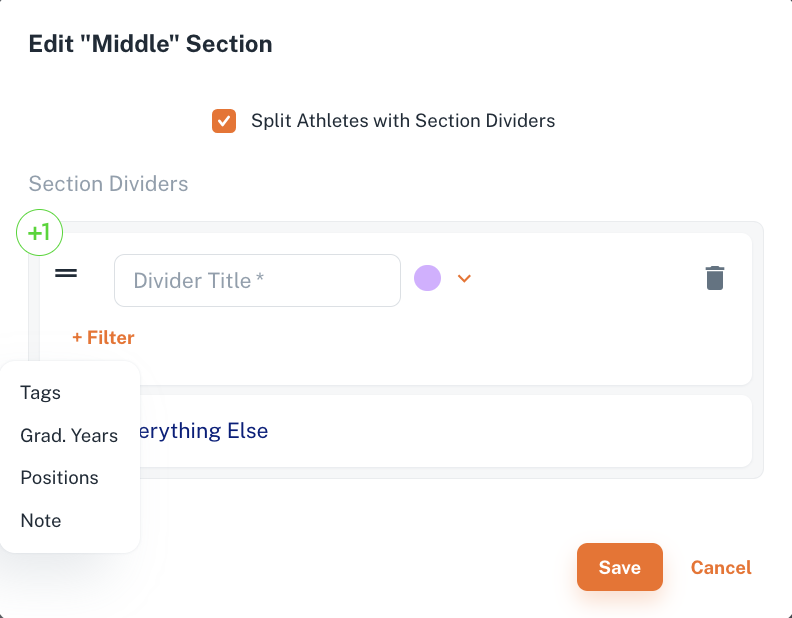
If you select to Split Athetes with Section Dividers, the athlete cards will be visually separated corresponding due to the filter, set up for the divider. For every section you can set up dividers. There are no specific default filters, so that the only one is called everything else.

To set up a filter for dividers, click the +1 button, and then "+Filter" button. Enter the name for the divider, select the parameter (tag, graduation year, position, or note), and save the changes. The athlete cards corresponding to the chosen parameters will be visually separated from the others in the section.

[![Screenshot 2024-01-04 at 22.55.48.png](https://docs.universityathlete.com/uploads/images/gallery/2024-01/scaled-1680-/screenshot-2024-01-04-at-22-55-48.png)](https://docs.universityathlete.com/uploads/images/gallery/2024-01/screenshot-2024-01-04-at-22-55-48.png)
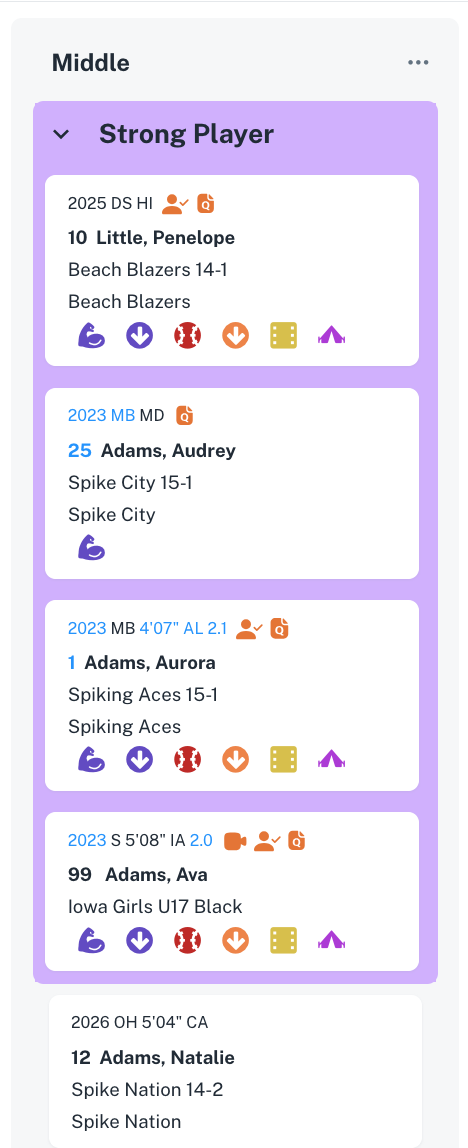
For example, in the section with the divider "Tag - Strong Player," it looks like this: it highlights the athlete cards with this tag, leaving the others underneath.

**[![Screenshot 2024-01-04 at 22.59.26.png](https://docs.universityathlete.com/uploads/images/gallery/2024-01/scaled-1680-/screenshot-2024-01-04-at-22-59-26.png)](https://docs.universityathlete.com/uploads/images/gallery/2024-01/screenshot-2024-01-04-at-22-59-26.png)**
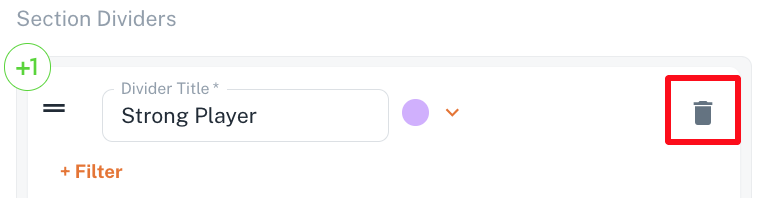
To delete the filter for the divider click the delete button on the right.

[![Screenshot 2024-01-04 at 23.09.26.png](https://docs.universityathlete.com/uploads/images/gallery/2024-01/scaled-1680-/screenshot-2024-01-04-at-23-09-26.png)](https://docs.universityathlete.com/uploads/images/gallery/2024-01/screenshot-2024-01-04-at-23-09-26.png)
# Assigning Athletes to Boards

Assigning Athlete to Boards means that the small Athlete Card is displayed at the Board selected.

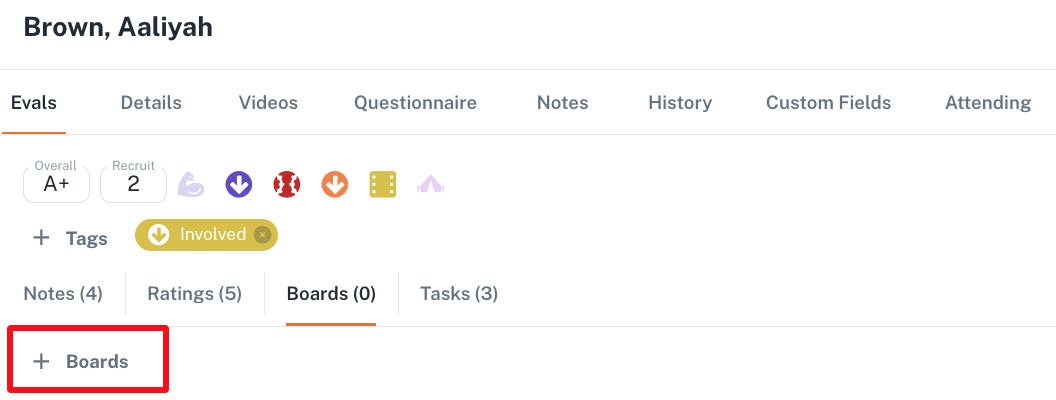
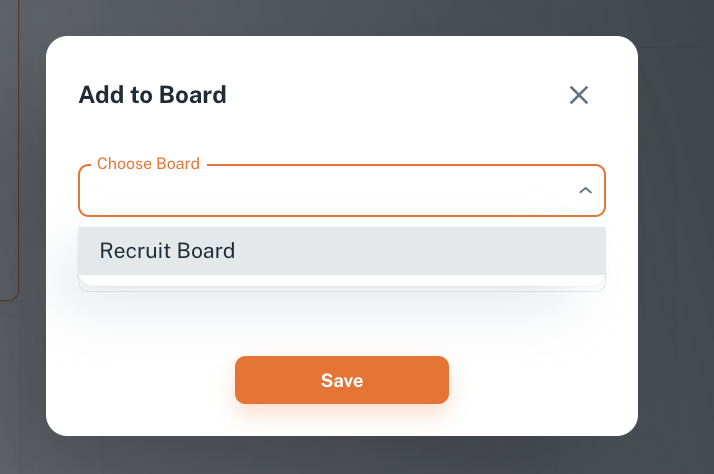
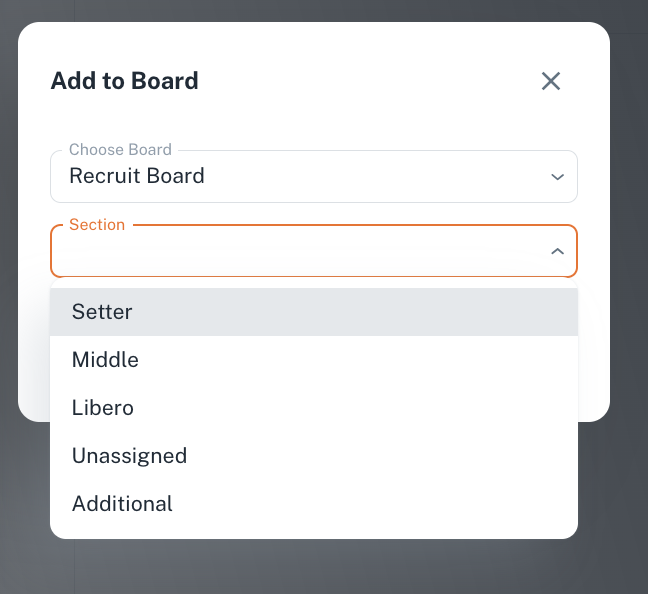
To add an Athlete to a board: go to Athlete Details, open Boards Tab, Click + Boards button, select the Board, and the Section (if needed) you want to add the Athlete to.

[![Screenshot 2024-01-05 at 21.57.06.png](https://docs.universityathlete.com/uploads/images/gallery/2024-01/scaled-1680-/screenshot-2024-01-05-at-21-57-06.png)](https://docs.universityathlete.com/uploads/images/gallery/2024-01/screenshot-2024-01-05-at-21-57-06.png)
[![Screenshot 2024-01-05 at 21.57.42.png](https://docs.universityathlete.com/uploads/images/gallery/2024-01/scaled-1680-/screenshot-2024-01-05-at-21-57-42.png)](https://docs.universityathlete.com/uploads/images/gallery/2024-01/screenshot-2024-01-05-at-21-57-42.png)
[![Screenshot 2024-01-05 at 22.01.02.png](https://docs.universityathlete.com/uploads/images/gallery/2024-01/scaled-1680-/screenshot-2024-01-05-at-22-01-02.png)](https://docs.universityathlete.com/uploads/images/gallery/2024-01/screenshot-2024-01-05-at-22-01-02.png)
When you save the changes, the pill with this name appears at the athlete details flyout, and the small athlete card will be displayed at the corresponding board and section.

[![Screenshot 2024-01-05 at 22.26.08.png](https://docs.universityathlete.com/uploads/images/gallery/2024-01/scaled-1680-/screenshot-2024-01-05-at-22-26-08.png). ](https://docs.universityathlete.com/uploads/images/gallery/2024-01/screenshot-2024-01-05-at-22-26-08.png)[![Screenshot 2024-01-05 at 22.03.08.png](https://docs.universityathlete.com/uploads/images/gallery/2024-01/scaled-1680-/screenshot-2024-01-05-at-22-03-08.png)](https://docs.universityathlete.com/uploads/images/gallery/2024-01/screenshot-2024-01-05-at-22-03-08.png)
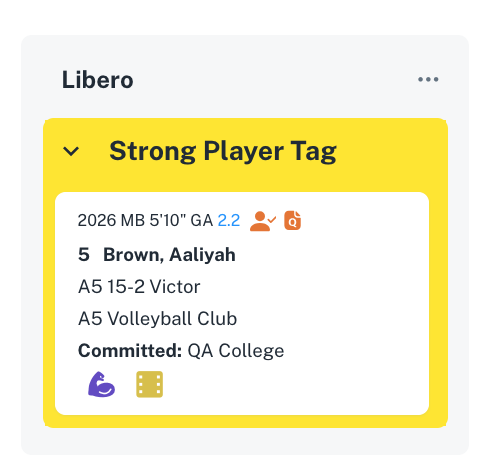

By clicking the cross on the pill, you will remove the athlete from the board.

##### Managing Athletes at Boards

You can place an athlete card to several boards, or several sections at the same time. For each section a small athlete card for this athlete will be displayed.

You can drag &amp; drop athlete cards between sections. When you place an athlete to the section with dividers, the athlete will be placed within the specific divider automatically, if the athlete has the parameter (tag, grad year) set up as filter for the divider.

Athlete cards are clickable, you can remove the athlete from the board or from the section using the 3 dots menu. Additional actions are also available.

# Tasks


# Task Templates


# Assigning Tasks


# Managing Tasks


# Workflows

# Communication


# Questionnaires


# Athlete Messages


# Direct Email

# Search


# Athlete Search

### <span style="color: rgb(0, 0, 0);"><span style="background-color: transparent; font-family: Arial, sans-serif; font-size: 11pt; font-style: normal; font-variant-ligatures: normal; font-variant-caps: normal; font-weight: bold; white-space-collapse: preserve;">Flyout with Filters</span></span>

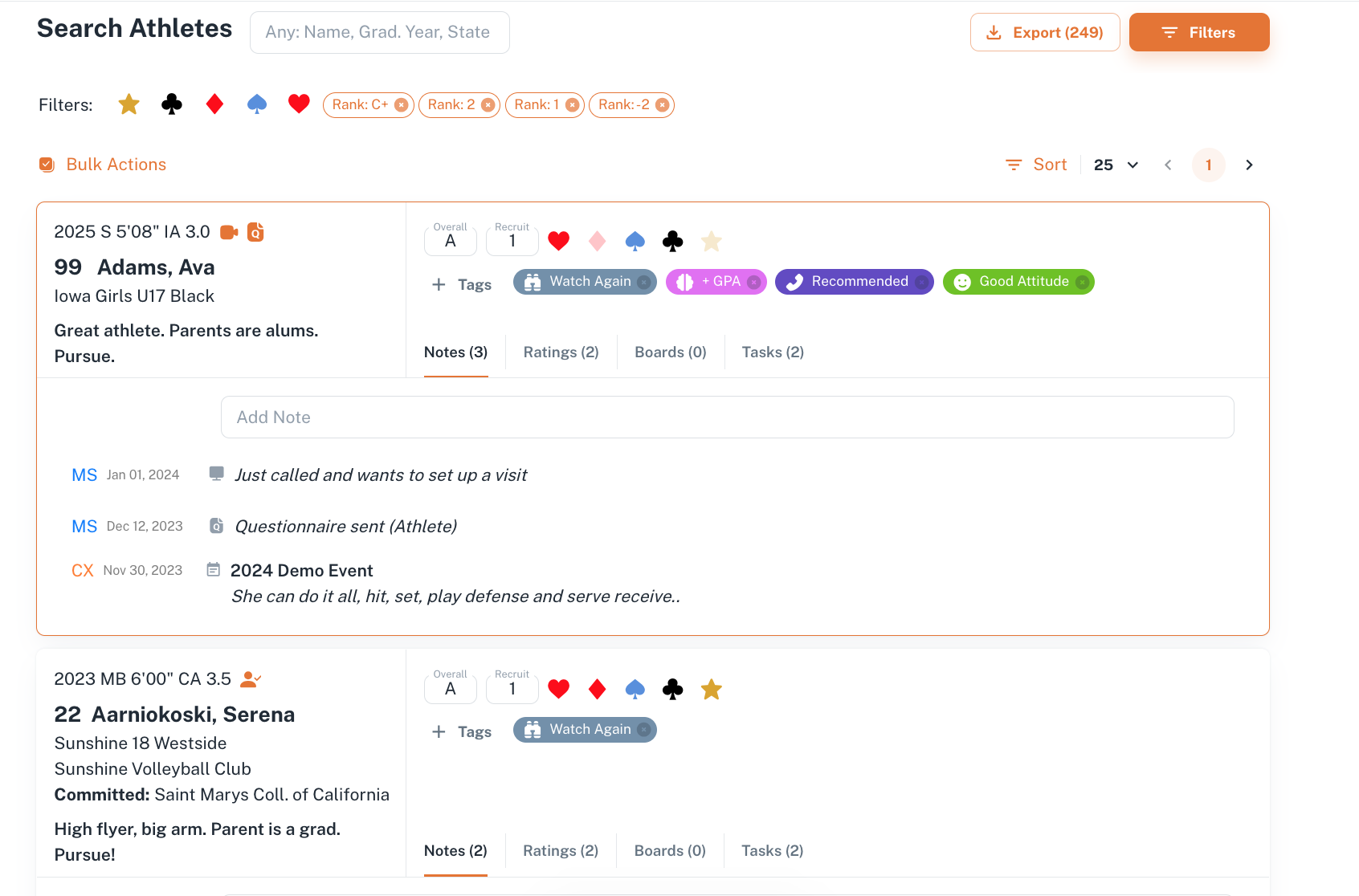
<span style="font-size: 11pt; font-family: Arial,sans-serif; color: #000000; background-color: transparent; font-weight: 400; font-style: normal; font-variant: normal; text-decoration: none; vertical-align: baseline; white-space: pre-wrap;">Generally there are 4 different groups of search filters: Athlete (General Athlete data), Evaluations, Ratings, and Events. Each of them can be turned ON by the corresponding toggle, and opened or closed by the arrow UP or DOWN.</span>

<span style="font-size: 11pt; font-family: Arial,sans-serif; color: #000000; background-color: transparent; font-weight: 400; font-style: normal; font-variant: normal; text-decoration: none; vertical-align: baseline; white-space: pre-wrap;">One or several toggles can be active at the same time.</span>

<span style="font-size: 11pt; font-family: Arial,sans-serif; color: #000000; background-color: transparent; font-weight: 400; font-style: normal; font-variant: normal; text-decoration: none; vertical-align: baseline; white-space: pre-wrap;">First when you click Search Athlete you will see the list of athletes evaluated by your College.</span>

<span style="font-size: 11pt; font-family: Arial,sans-serif; color: #000000; background-color: transparent; font-weight: 400; font-style: normal; font-variant: normal; text-decoration: none; vertical-align: baseline; white-space: pre-wrap;">The flyout with search filters pops up automatically, with the Evaluated toggle ON by default.</span>

<span style="font-size: 11pt; font-family: Arial,sans-serif; color: #000000; background-color: transparent; font-weight: 400; font-style: normal; font-variant: normal; text-decoration: none; vertical-align: baseline; white-space: pre-wrap;">To apply the Search filters you have to click the Apply button.</span>

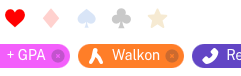
<span style="font-size: 11pt; font-family: Arial,sans-serif; color: #000000; background-color: transparent; font-weight: 400; font-style: normal; font-variant: normal; text-decoration: none; vertical-align: baseline; white-space: pre-wrap;">If you pick up a search filter, and close the list of filters by arrow UP, the filters will pop up as pills right to the toggle. It works the same way if the toggle is OFF, but the pills are greyished, inactive. </span>

<span style="font-size: 11pt; font-family: Arial,sans-serif; color: #000000; background-color: transparent; font-weight: 400; font-style: normal; font-variant: normal; text-decoration: none; vertical-align: baseline; white-space: pre-wrap;">The active pills are also displayed at the Search page, where search results are displayed.</span>

<span style="font-size: 11pt; font-family: Arial,sans-serif; color: #000000; background-color: transparent; font-weight: 400; font-style: normal; font-variant: normal; text-decoration: none; vertical-align: baseline; white-space: pre-wrap;"><span style="border: none; display: inline-block; overflow: hidden; width: 354px; height: 36px;">![](https://lh7-us.googleusercontent.com/A7VPhXniHPt6PSYW8Rz7hY6PPrsLVpCEO7fEeKRT56mY8qlDZPMH7A7G1MYggq6QuaL1ctqNgC2ShfNf_Q44cP8mbnD6i6vqOWHa8PVkCqCfH2uJrZwVsTZlkhtkrRlsAMN99Uymt-Wp6_-YFfw5ytc)</span></span>

<span style="font-size: 11pt; font-family: Arial,sans-serif; color: #000000; background-color: transparent; font-weight: 400; font-style: normal; font-variant: normal; text-decoration: none; vertical-align: baseline; white-space: pre-wrap;"><span style="border: none; display: inline-block; overflow: hidden; width: 283px; height: 39px;">![](https://lh7-us.googleusercontent.com/lx1FmAMm8xEY0kLECUwzFHIs_0VlFgbkS22g5caWgztgl-tmn_JGEawGvqxpV5_k4IOcqyg4w6A-EjomQkTBuHzrj0MqDod7VWwugS8G2Xk2sSu4fKnHCOotG38JzGhFt_5qxl-V_pEtFYL5fvuTeiw)</span></span>

<span style="color: rgb(0, 0, 0);">  
</span>

<span style="font-size: 11pt; font-family: Arial,sans-serif; color: #000000; background-color: transparent; font-weight: 400; font-style: normal; font-variant: normal; text-decoration: none; vertical-align: baseline; white-space: pre-wrap;">When you click the Apply button, you will see the Athletes filtered according to the criteria. In addition you can see the whole number of athletes found by these criteria at the top right corner of the flyout with filters. </span>

<span id="bkmrk--1" style="font-weight: normal; color: rgb(0, 0, 0);"><span style="font-size: 11pt; font-family: Arial, sans-serif; background-color: transparent; font-weight: 400; font-style: normal; font-variant: normal; white-space-collapse: preserve;"><span style="border-width: initial; border-style: none; display: inline-block; overflow: hidden; width: 624px; height: 383px;">![](https://lh7-us.googleusercontent.com/ZBPLxY3XrlD56rMVGiCyokL8UQx253NFdQV56A_syzCyd2N1LCH4Z6nSvwHDxNmYh_YdqwpCtEZgYP75HxpLftVpkDvBnsFTtSscaOwTrTOWIvX9k6K_AAcGNYalnuQlNrlF_6sCke5jvS4939iNDRM)</span></span></span>

<span style="font-size: 11pt; font-family: Arial,sans-serif; color: #000000; background-color: transparent; font-weight: 400; font-style: normal; font-variant: normal; text-decoration: none; vertical-align: baseline; white-space: pre-wrap;">You can close the flyout by clicking the cross at its top left corner, or open it again, clicking the Filters button at the Search Athlete page.</span>

<span style="color: rgb(0, 0, 0);">  
</span>

<span style="font-size: 11pt; font-family: Arial,sans-serif; color: #000000; background-color: transparent; font-weight: bold; font-style: normal; font-variant: normal; text-decoration: none; vertical-align: baseline; white-space: pre-wrap;"><span style="border: none; display: inline-block; overflow: hidden; width: 480px; height: 38px;">![](https://lh7-us.googleusercontent.com/ZVZygmqfDL-ZLz-YY3Bc_fx6XCTIWkPQE5CTBUP8A-GmvQNLfJP7SrMUBK51iY8-BdIx4st8149xDtWzyApkrLD53rjwQt7_aplgqRwC1YtwLkItQgR3lznOuO2gFlHGsQ0QlTALyNKKfWxidv4ScFI)</span></span>

<span style="color: rgb(0, 0, 0);">  
</span>

#### <span style="font-size: 11pt; font-family: Arial,sans-serif; color: #000000; background-color: transparent; font-weight: bold; font-style: normal; font-variant: normal; text-decoration: none; vertical-align: baseline; white-space: pre-wrap;">Search by Athlete </span>

<span style="color: rgb(0, 0, 0);"><span style="font-size: 11pt; font-family: Arial, sans-serif; background-color: transparent; font-weight: 400; font-style: normal; font-variant: normal; text-decoration: none; vertical-align: baseline; white-space: pre-wrap;">Available here is the Search by Athlete First, Last name, Grad Year, State, Club, Position, Scholarship status, Minimum Height and Minimum GRA. You can filter out athletes you follow, or who have video as well.</span><span style="font-size: 11pt; font-family: Arial, sans-serif; background-color: transparent; font-weight: 400; font-style: normal; font-variant: normal; text-decoration: none; vertical-align: baseline; white-space: pre-wrap;"><span style="border: none; display: inline-block; overflow: hidden; width: 624px; height: 349px;">![](https://lh7-us.googleusercontent.com/hZEmz4k_4zXT-97oe72L41PyO2jeZ2FINEWQjKUbbnfIkVqWwnKiGBTJlenkETTfSDTkY1N5mXSUL3Q5laVMGncgxYjGvWh48juGmHIF6z2gIwr_YH3nljqjUGrHy565DHT6uia23KzVzKf_0D4sLZY)</span></span></span>

#### <span style="font-size: 11pt; font-family: Arial,sans-serif; color: #000000; background-color: transparent; font-weight: bold; font-style: normal; font-variant: normal; text-decoration: none; vertical-align: baseline; white-space: pre-wrap;">Search by Evaluated Athletes</span>

<span style="font-size: 11pt; font-family: Arial,sans-serif; color: #000000; background-color: transparent; font-weight: 400; font-style: normal; font-variant: normal; text-decoration: none; vertical-align: baseline; white-space: pre-wrap;">Here you can select Primary Tags by clicking them ON, or add to the Search Secondary Tags by clicking + Tag button and selecting the Tag you need. </span>

<span style="font-size: 11pt; font-family: Arial,sans-serif; color: #000000; background-color: transparent; font-weight: 400; font-style: normal; font-variant: normal; text-decoration: none; vertical-align: baseline; white-space: pre-wrap;"><span style="border: none; display: inline-block; overflow: hidden; width: 486px; height: 127px;">![](https://lh7-us.googleusercontent.com/MahX1yCkKTC2Pm78s2gfJRa4B31uAj9_A_dXz0GNtx6VibNXX3mPTs5QWFC5ULr-gPJ8zv8gHrkd-R-fs-qnvY7yJ84yesRsDJmxjHNKQG-Z0YzufSyopaLyDt465sLiFRBl7JdUD-5SJPacGNDbocE)</span></span>

<span style="color: rgb(0, 0, 0);">  
</span>

<span style="font-size: 11pt; font-family: Arial,sans-serif; color: #000000; background-color: transparent; font-weight: 400; font-style: normal; font-variant: normal; text-decoration: none; vertical-align: baseline; white-space: pre-wrap;">To remove a Secondary Tag from search, click the cross at the pill. </span>

<span style="font-size: 11pt; font-family: Arial,sans-serif; color: #000000; background-color: transparent; font-weight: 400; font-style: normal; font-variant: normal; text-decoration: none; vertical-align: baseline; white-space: pre-wrap;"><span style="border: none; display: inline-block; overflow: hidden; width: 342px; height: 76px;">![](https://lh7-us.googleusercontent.com/5q1dOHjS29T7kw5isU4GmirgXdWRbhTPecSEkSiO8zJUV6cq0pnmYXY94BV2PK6UvitcmNy3CyPVd7MnUkCr24wI1joc5eRH3zNGBJKROzmJMioMjYPoj2Th1hd0rcS_PxGQp8wAQdrMN5hU9W6f4yM)</span></span>

<span style="font-size: 11pt; font-family: Arial,sans-serif; color: #000000; background-color: transparent; font-weight: 400; font-style: normal; font-variant: normal; text-decoration: none; vertical-align: baseline; white-space: pre-wrap;">You can apply the logic of all, then you will see the Athletes having all of the tags you specified, or the logic of ANY, in this case athletes with at least 1 tag you mentioned will pop up at search results. </span>

<span style="color: rgb(0, 0, 0);"><span style="font-size: 11pt; font-family: Arial, sans-serif; background-color: transparent; font-weight: 400; font-style: normal; font-variant: normal; text-decoration: none; vertical-align: baseline; white-space: pre-wrap;"> </span><span style="font-size: 11pt; font-family: Arial, sans-serif; background-color: transparent; font-weight: 400; font-style: normal; font-variant: normal; text-decoration: none; vertical-align: baseline; white-space: pre-wrap;"><span style="border: none; display: inline-block; overflow: hidden; width: 191px; height: 83px;">![](https://lh7-us.googleusercontent.com/xLp-kkn4OAE2qQiXqtsuBgtP3YY7VUCtDg6HYlmmgc0Ad3o3A70t8wVf920eW78dC5KVTmrA90AuhZVPxednWIBaNbiKcUVE4JK0qlcGDQBuwWYgKeoYjn0zabZe6rZjW7auHKGUYaE9I26-XqPvw5U)</span></span></span>

<span style="color: rgb(0, 0, 0);">  
</span>

<span style="font-size: 11pt; font-family: Arial,sans-serif; color: #000000; background-color: transparent; font-weight: 400; font-style: normal; font-variant: normal; text-decoration: none; vertical-align: baseline; white-space: pre-wrap;">In addition, it is available to search athletes by texts in Summary, or in Notes, and by Coach, who placed the evaluation.</span>

<span style="color: rgb(0, 0, 0);">  
</span>

<span style="font-size: 11pt; font-family: Arial,sans-serif; color: #000000; background-color: transparent; font-weight: 400; font-style: normal; font-variant: normal; text-decoration: none; vertical-align: baseline; white-space: pre-wrap;"><span style="border: none; display: inline-block; overflow: hidden; width: 624px; height: 113px;">![](https://lh7-us.googleusercontent.com/bThRisJnYzvGMrKxf2W9WWC1sIoXknoq_UYtgGKMfvgjqIXI4vsSb-W1Wg5dZH2zzXUkUukGIsgG8pA8muG9F2GdseV0berxu5CjRYqSvBG3evoy23nE2MAbL9zON1m2ZwlbPyef1BivlggRc4Qylu8)</span></span>

<span style="color: rgb(0, 0, 0);">  
</span>

#### <span style="font-size: 11pt; font-family: Arial,sans-serif; color: #000000; background-color: transparent; font-weight: bold; font-style: normal; font-variant: normal; text-decoration: none; vertical-align: baseline; white-space: pre-wrap;">Search by Ratings</span>

<span style="font-size: 11pt; font-family: Arial,sans-serif; color: #000000; background-color: transparent; font-weight: 400; font-style: normal; font-variant: normal; text-decoration: none; vertical-align: baseline; white-space: pre-wrap;">These filters allow search Athletes, ranked with the Overall or Recruit by your College.</span>

<span style="font-size: 11pt; font-family: Arial,sans-serif; color: #000000; background-color: transparent; font-weight: 400; font-style: normal; font-variant: normal; text-decoration: none; vertical-align: baseline; white-space: pre-wrap;">Just pick up the score to filter out the athletes.</span>

<span style="font-size: 11pt; font-family: Arial,sans-serif; color: #000000; background-color: transparent; font-weight: 400; font-style: normal; font-variant: normal; text-decoration: none; vertical-align: baseline; white-space: pre-wrap;">The Search logic is any: if you pick up the Overall rating score A+, B+, and Recruit 2, 1, and click the Apply button, you will see the athletes who have at least one of the scores: either A+, or B+ or 2 or 1.</span>

<span style="color: rgb(0, 0, 0);">  
</span>

<span style="font-size: 11pt; font-family: Arial,sans-serif; color: #000000; background-color: transparent; font-weight: 400; font-style: normal; font-variant: normal; text-decoration: none; vertical-align: baseline; white-space: pre-wrap;"><span style="border: none; display: inline-block; overflow: hidden; width: 624px; height: 176px;">![](https://lh7-us.googleusercontent.com/0JECwlPfsO6QblKgRqQRB1ZKi33bXciR7d_YN6fxQuln2slYU_K99mRrbVsBjLc593FfU_tTtMaZao0J_31cT4S8r-roAwLazuJZ84408CsGD1efqwQAtRyRHABSfzUrKn5-B9XG0P11FFq_lijXSis)</span></span>

<span style="font-size: 11pt; font-family: Arial,sans-serif; color: #000000; background-color: transparent; font-weight: bold; font-style: normal; font-variant: normal; text-decoration: none; vertical-align: baseline; white-space: pre-wrap;">Search by Events</span>

<span style="font-size: 11pt; font-family: Arial,sans-serif; color: #000000; background-color: transparent; font-weight: 400; font-style: normal; font-variant: normal; text-decoration: none; vertical-align: baseline; white-space: pre-wrap;">Here you can search Athletes who participated at the events, filtering by event year and selecting the particular event name.</span>

<span style="font-size: 11pt; font-family: Arial,sans-serif; color: #000000; background-color: transparent; font-weight: 400; font-style: normal; font-variant: normal; text-decoration: none; vertical-align: baseline; white-space: pre-wrap;">In addition the checkbox allows to filter out the athletes who were evaluated exactly at these events. </span>

<span style="color: rgb(0, 0, 0);">  
</span>

<span style="font-size: 11pt; font-family: Arial,sans-serif; color: #000000; background-color: transparent; font-weight: 400; font-style: normal; font-variant: normal; text-decoration: none; vertical-align: baseline; white-space: pre-wrap;"><span style="border: none; display: inline-block; overflow: hidden; width: 624px; height: 84px;">![](https://lh7-us.googleusercontent.com/dPE2J9Zpm0312KpryWrRAWB1g90SDOmfAwi7YVF7EqcATvVoIsZ5Vtklf1EXP21aDqsCZ-fnO6dVOPcNYwAprWymNAaJAZKNjWB_Nsr-LIEK0MaCCZ9Cv5s19R0u7K60rzoZaLUhiPVV46fiT_H7JYw)</span></span>

#### <span style="color: rgb(0, 0, 0);">Search Athlete Page</span>

<span style="color: rgb(0, 0, 0);">This is a page showing the search results, Athlete Cards of Athletes, corresponding to the search criteria. </span>

<span style="color: rgb(0, 0, 0);">Here you can sort Athletes by First, Last Name, Position, State, and select the number of Athletes to display at each page (25 or 50).</span>

<span style="color: rgb(0, 0, 0);">Export button serves for exporting the Athletes. You can only export up to 300 athletes, and only evaluated (having a Tag, Note, Summary, or Rating).</span>

<span style="color: rgb(0, 0, 0);">The Export button becomes active, when the number of athletes available for exporting is below 300.</span>

<span style="color: rgb(0, 0, 0);">[![Screenshot 2024-01-07 at 21.39.16.png](https://docs.universityathlete.com/uploads/images/gallery/2024-01/scaled-1680-/screenshot-2024-01-07-at-21-39-16.png)](https://docs.universityathlete.com/uploads/images/gallery/2024-01/screenshot-2024-01-07-at-21-39-16.png)</span>

# Event Search

The Search Events page displays all the past and upcoming events. If the event is available to buy you can purchase it right here, clicking the purchase button.

You can search events by name or filter out them by start date or size, by click on the size buttons, S, M, L, or XL.

# Weekends Search

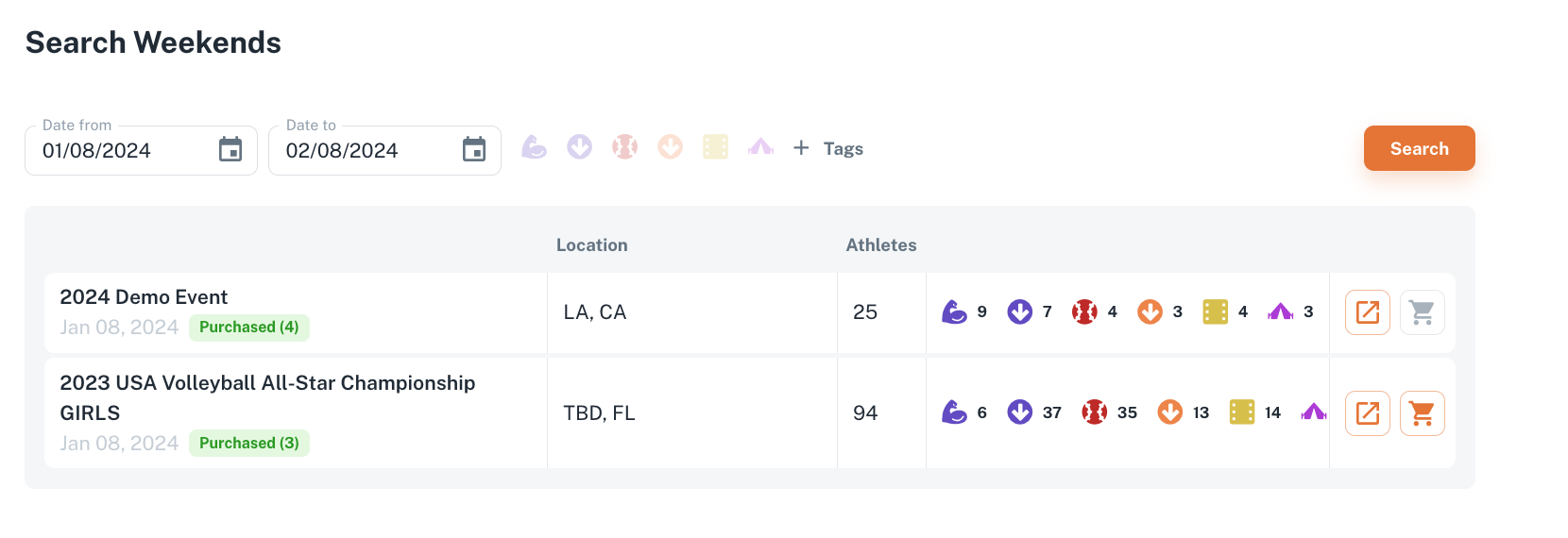
The page displays activities at the events. Pick up a date range, and you will see the list of events within this date range. For each event there is a number of participating athletes with total number of tags applied to these athletes.

By clicking the arrow button you will be navigated to the whole list of athletes participating at this particular event,

and at the cart button you can purchase the access to the event for the first or additional device.

[![Screenshot 2024-01-08 at 14.18.23.png](https://docs.universityathlete.com/uploads/images/gallery/2024-01/scaled-1680-/screenshot-2024-01-08-at-14-18-23.png)](https://docs.universityathlete.com/uploads/images/gallery/2024-01/screenshot-2024-01-08-at-14-18-23.png)
# College Search


# Videos Search

Here you can search for videos by athletes.

Type in athlete name or name of the video or specify a date range and you will see the list of videos, according to your search criteria.

[![Screenshot 2024-01-08 at 15.00.47.png](https://docs.universityathlete.com/uploads/images/gallery/2024-01/scaled-1680-/screenshot-2024-01-08-at-15-00-47.png)](https://docs.universityathlete.com/uploads/images/gallery/2024-01/screenshot-2024-01-08-at-15-00-47.png)
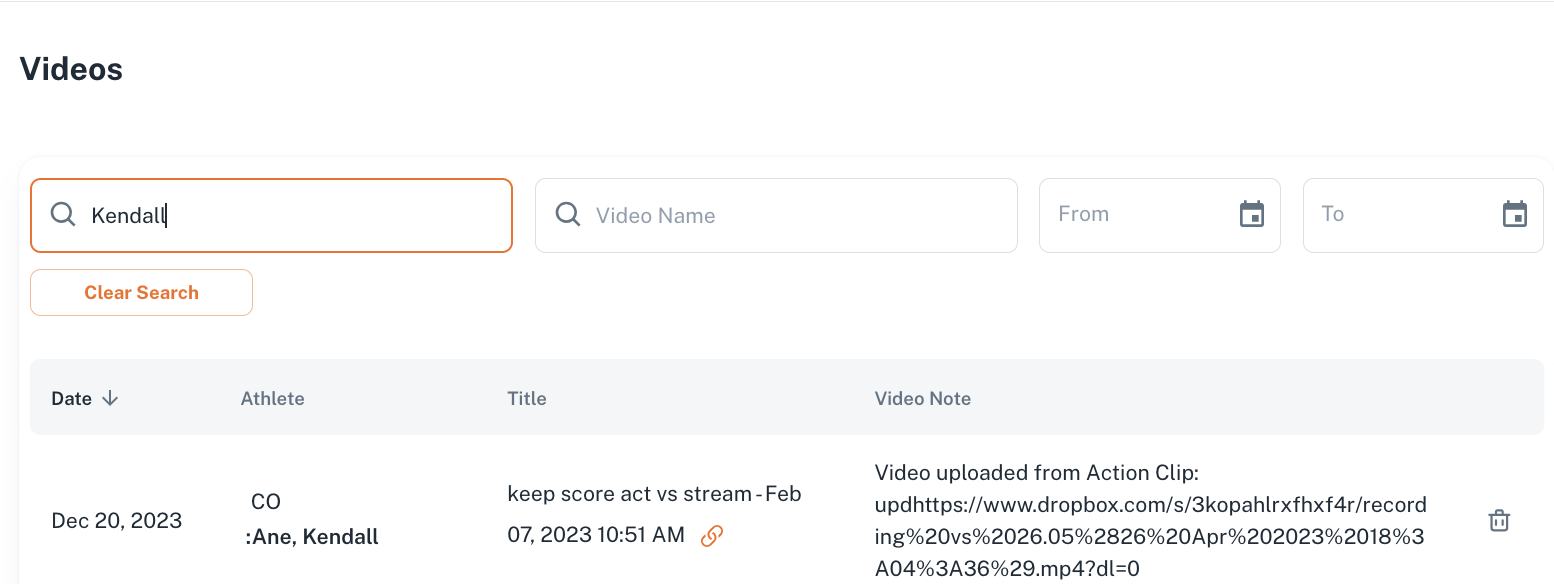
Watch video is available at the link icon [![Screenshot 2024-01-08 at 14.56.15.png](https://docs.universityathlete.com/uploads/images/gallery/2024-01/scaled-1680-/screenshot-2024-01-08-at-14-56-15.png)](https://docs.universityathlete.com/uploads/images/gallery/2024-01/screenshot-2024-01-08-at-14-56-15.png)
You can delete the video by clicking the trash button. [![Screenshot 2024-01-08 at 15.01.20.png](https://docs.universityathlete.com/uploads/images/gallery/2024-01/scaled-1680-/screenshot-2024-01-08-at-15-01-20.png)](https://docs.universityathlete.com/uploads/images/gallery/2024-01/screenshot-2024-01-08-at-15-01-20.png)
# Orphaned Messages Search